
Skip to content
Clockdiaryclock diary
Menu
  • Pricing
  • Features
  • Blogs
  • Help Center
  • Contact Us
  • Download
  • Sign In
  • Sign up
  • Feature
  • Pricing
  • Testimonials
  • Instant Solution
  • Sign In
  • Book A Demo
  • Sign Up Free

Clockdiary Help Center

Find everything you need to get started with Clockdiary—learn about projects, teams, time tracking, and more.

Projects

  • How to Create a New Project
  • How to edit a project
  • How to Manage Project Access
  • How to Archive a Project
  • How to restore archived projects
  • How to assign project access to a member

Customers

  • How to Add a Customer
  • How to view customer details 
  • How to Edit Customer Details in Clockdiary
  • How to archive customer details
  • How to restore archived customers

Teams

  • How to Create a Group
  • How to Add Members to a Group
  • How to Remove Members from a Group
  • How to Add Members to A Team
  • How to Remove Members from Teams
  • How to Archive a Member in Teams
  • How to Assign a Role to a Member

Work Zones

  • How to add a new workzone 
  • How to update workzone settings
  • How to delete a workzone

Labels

  • How to add labels
  • How to archive or restore labels

Profile Settings

  • How to change password
  • How to change profile picture
  • How to edit my profile 

Time Recorder

  • How to create a Time Entry
  • How to Sign Up for Clockdiary (Step-by-Step Guide)
  • How to create a duplicate time entry

Timesheet

  • How to Set Up and Use the Timesheet Feature
  • How to Submit a Timesheet
  • How to Approve a Timesheet
  • How to Reject a Timesheet

Activity Tracker

  • How to Enable or Disable Screenshot Tracking
  • How to Use the Activity Tracker for Employee Monitoring
View Categories
  • Home
  • Clockdiary Help
  • Customers
  • How to Edit Customer Details in Clockdiary

How to Edit Customer Details in Clockdiary

Keeping your customer records accurate is essential for smooth communication, proper billing, and excellent service. With Clockdiary, you can easily edit customer details in just a few clicks. This guide will walk you through the process so you can quickly update names, emails, phone numbers, and addresses while keeping your customer database organized and up to date.

Why You Should Regularly Edit Customer Details

Updating customer details is more than just good housekeeping. When your records are accurate you:

  • Make sure invoices and reminders reach the right inbox
  • Avoid errors in billing, shipping, or service appointments
  • Deliver a better and more personalized experience to your customers

Customer Information You Can Update

Clockdiary lets you edit customer details like:

  • Customer name
  • Email address
  • Phone number
  • Physical address

Having all of this correct ensures you never miss important communication.

Step-by-Step Guide to Edit Customer Details

Step 1: Open the Customers Section

From the left-hand sidebar menu, click on “Customers” to access your customer database.
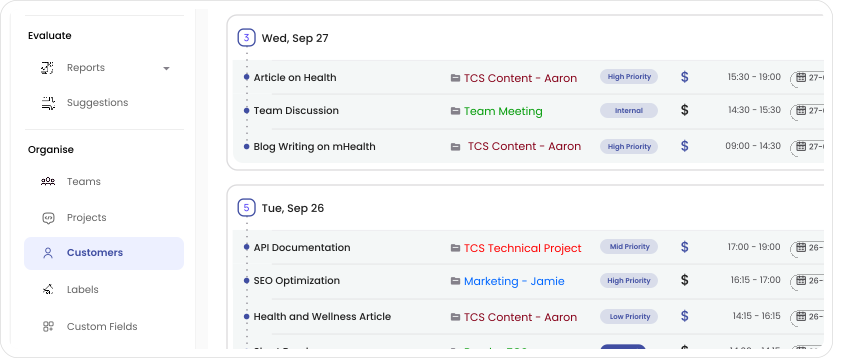
Customers

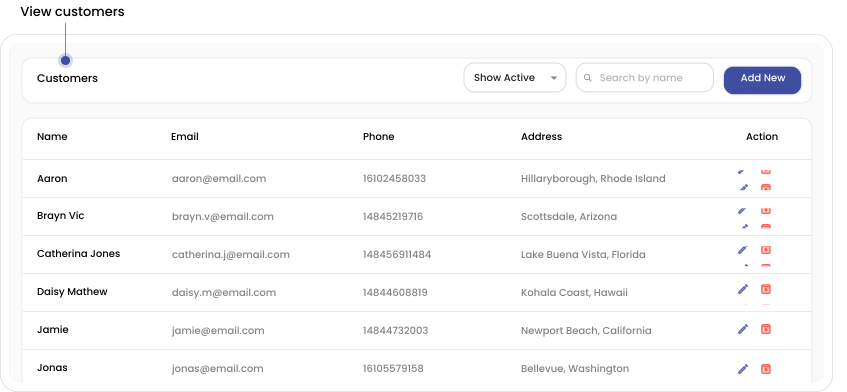
Step 2: View the Customer List


All customer details will be displayed in a clean, tabular format for easy viewing and access.

View Customers

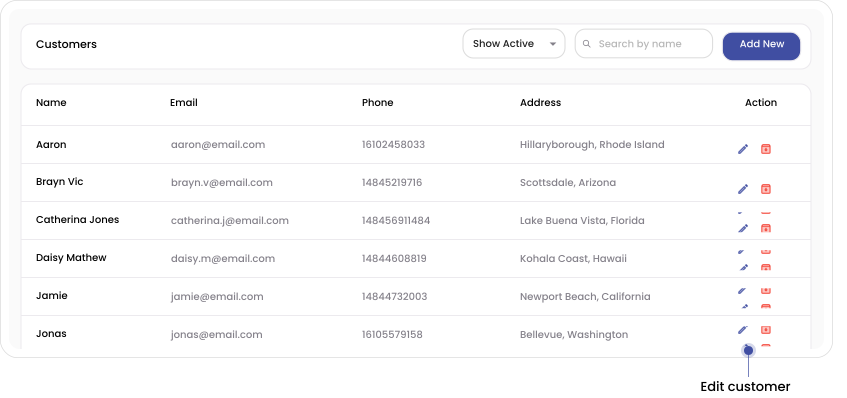
Step 3: Click the Edit Icon


Find the customer you want to update. Click the edit (✏️) icon in the “Actions” column next to their entry.

Edit Customer

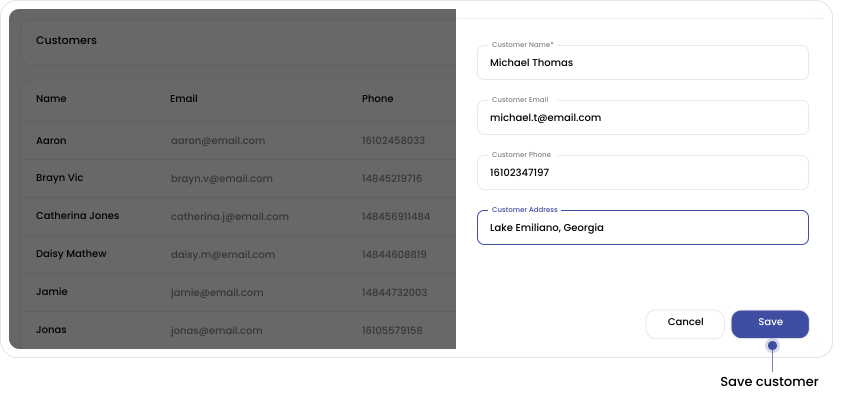
Step 4: Update Customer Information


A form will appear, allowing you to modify details such as:

  • Customer Name
  • Email Address
  • Phone Number
  • Physical Address
Save Customer

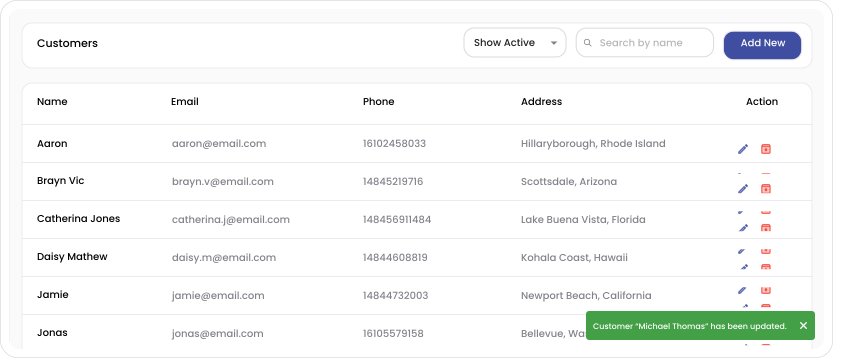
Step 5: Get Confirmation


Once saved, you’ll see a confirmation pop-up at the bottom-right corner of your screen notifying you that the customer details were successfully updated.

Customer Saved

Tips for Managing Customer Information

  • Edit customer details as soon as you receive updated information
  • Use Clockdiary’s search feature to quickly find the profile you want to update
  • Double check email addresses and phone numbers to avoid mistakes
  • Keep names consistent so you can find them easily later

 If you still have any queries, please email us at support@clockdiary.com.

Share This Article :

  • Facebook
  • X
  • LinkedIn
  • Pinterest
Clockdiaryclock diary
Keep Updated
Quick Links
  • Blogs
  • Pricing
  • Sitemap
  • Changelog
  • Terms of Use
  • Privacy Policy
  • Time Card Calculator
  • Military To Standard Time Converter
Help Docs
  • Projects
  • Teams
  • Customers
  • Work Zones
  • Profile Settings
  • Time Recorder
Features
  • Lock Time
  • Time Recorder
  • Manage Teams
  • Manage Projects
  • Multiple Work Time Zones
Time Tracking Solutions
  • For Lawyers
  • For Agencies
  • For Freelancers
  • For Accountants
  • With Screenshots
  • For Remote Teams
  • For payroll tracking
  • For Project Time Tracker
Contact Us
  • Contact Us
  • Book A Demo

Copyrights © 2025 | Clockdiary All Rights Reserved